Dynamic Dashboards
Agent-defined dashboards via dashboard.yaml with 11 widget types, historical tracking, and sparkline charts.
Why Every AI Agent Needs a GitHub Repo — dashboards
Apr 2026
Build and Deploy Agents in Cursor
Apr 2026
Concepts
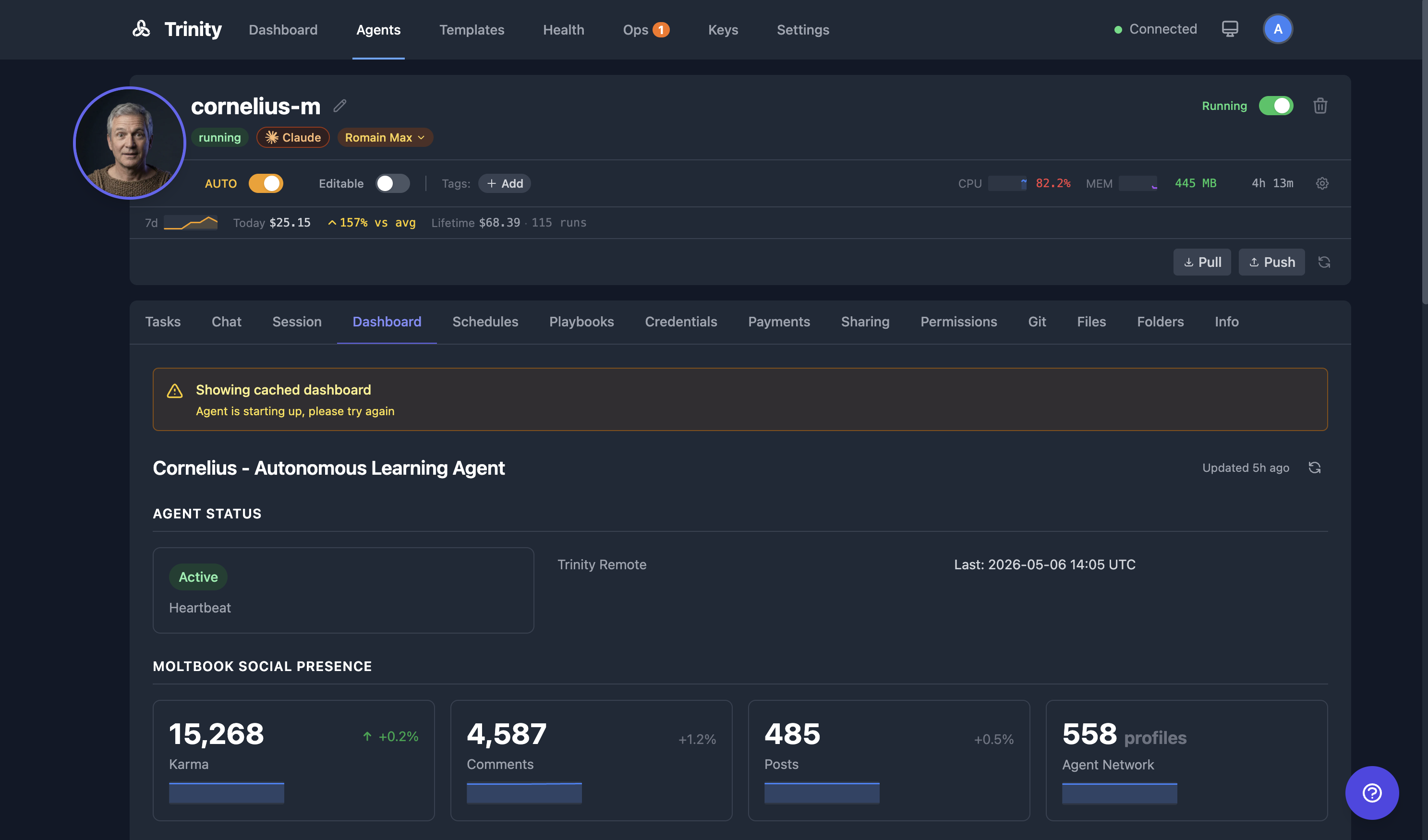
metric, status, progress, text, markdown, table, list, link, image, divider, spacer.id and its history is drawn as a sparkline automatically.agent_dashboard_values table over time, enabling trend analysis.dashboard.yaml) showing Tasks 24h, Success Rate, Cost, and Health.How It Works
The agent writes a dashboard.yaml file to its workspace.
The file defines widgets with type, title, value, and optional configuration fields.
Open the agent detail page and select the Dashboard tab to see the widgets.
Auto-refresh updates values as the agent modifies the YAML file.
Historical values are tracked automatically — sparklines appear for metrics with enough data points.
Trend indicators (↑/↓) show percentage change from previous values.
A Platform Metrics section appears at the bottom of every dashboard, showing Tasks 24h, Success Rate, Cost, and Health. This section is auto-injected and not controlled by the YAML file (set platform_metrics: false at the top level to opt out).
dashboard.yaml Shape
title: "My Agent Dashboard"     # required
refresh: 30                     # optional auto-refresh in seconds (min 5, default 30)
sections:                       # required, at least one
  - title: "Status"
    layout: grid                # grid (default) or list
    columns: 3                  # 1-4
    widgets:
      - type: metric
        id: tasks_done          # a stable id keeps the value's history — this is what draws the sparkline
        label: "Tasks completed"
        value: 42
        unit: "tasks"
      - type: markdown
        content: "**Next up:** the weekly digest"
Widget Reference
| Type | Required fields | Renders as |
|---|---|---|
| metric | label, value | A number, with optional unit, trend (up/down), trend_value, description — and a sparkline when it has an id |
| status | label, value, color | A colored badge (green, red, yellow, gray, blue, orange, purple) |
| progress | label, value | A 0–100 bar, optional color; history and sparkline when it has an id |
| text | content | Plain text, optional size, color, align |
| markdown | content | Rendered Markdown |
| table | columns, rows | A table |
| list | items | A bullet or numbered list |
| link | label, url | A link or button |
| image | src, alt | An image |
| divider | — | A horizontal rule |
| spacer | — | Vertical space |
The eleven types above are the closed set. A widget of any other type — or one missing a required field — is stripped by the agent server before the dashboard reaches the UI and listed in the Dashboard tab's widgets skipped due to validation errors banner; the rest of the dashboard still renders. The agent's compatibility report names the offending type. Only a missing title or an empty sections list makes the whole dashboard invalid.
Sparkline history is keyed by id. Trinity records each metric, progress, and status widget's value on every fetch; metric and progress widgets draw a sparkline once they have more than one point. A widget with an explicit id keeps its history when you reorder or insert widgets; one without an id is keyed by position (s0_w1), so moving it starts a new series. Trend arrows compare the first and second halves of the window (more than ±5% is up or down).
Related: the Brain Orb
The dashboard.yaml widgets above are one way an agent renders its own state. Knowledge-base agents — like the bundled Cornelius second-brain — can also publish a Brain Orb: a self-rendering "mind" page that draws the agent's own notes, edges, and activity as a live 3D knowledge graph on the agent's Brain tab.
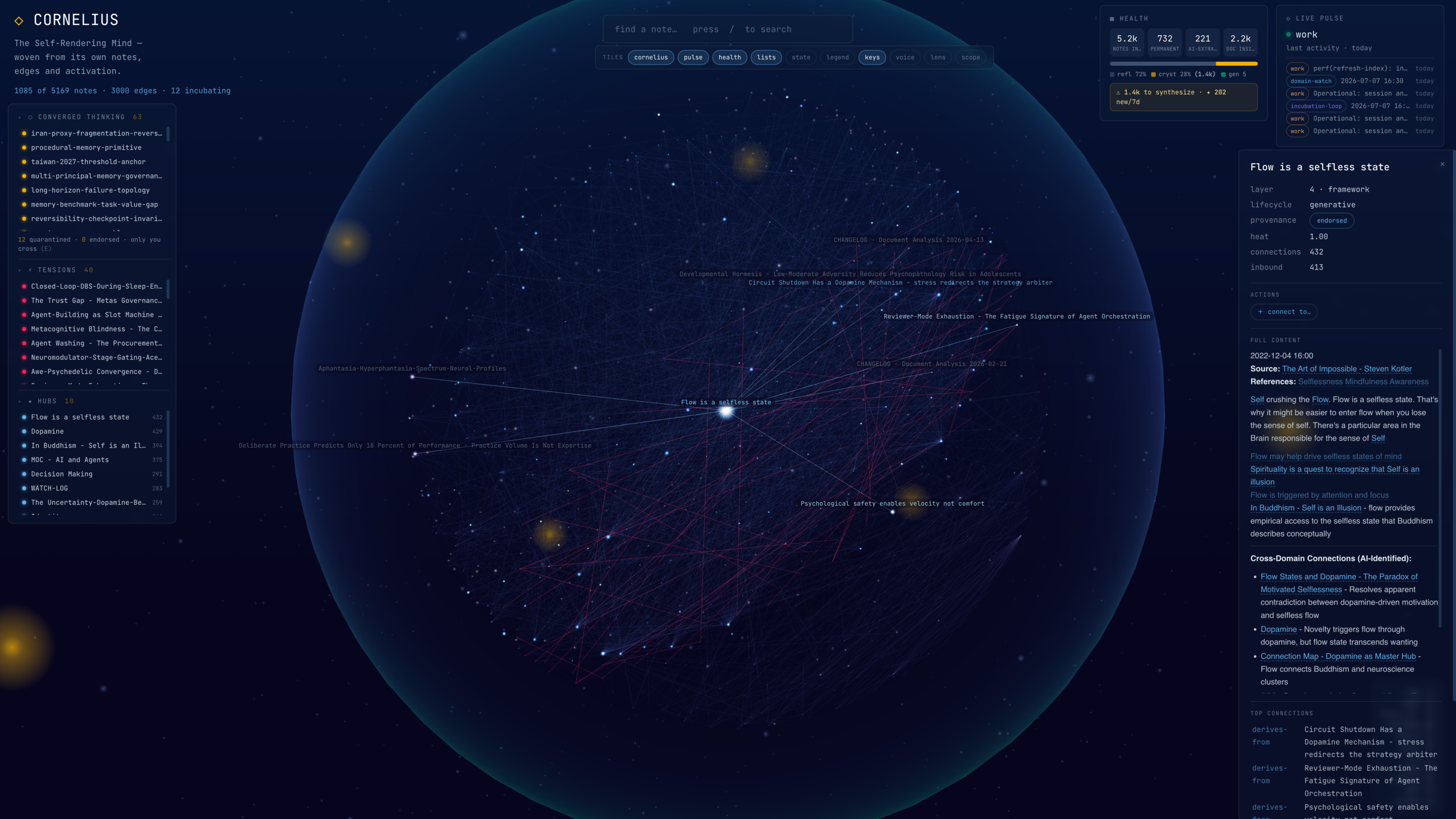
The Brain Orb is a capability-gated surface: it appears only for agents that ship the brain-orb capability (Cornelius-class agents) and only when the platform Brain Orb flag is enabled — it is off by default. The agent owns generation and scope state; Trinity reads and renders it.
For Agents
Agents control their dashboard entirely by writing to dashboard.yamlin their workspace. No API call is needed to publish changes — the file is read on each dashboard request.
API
| Endpoint | Method | Description |
|---|---|---|
| /api/agent-dashboard/{name} | GET | Get dashboard data, enriched with history and platform metrics |
| /api/agent-dashboard/{name}/exists | GET | Whether the agent has (or ever had) a dashboard — served from cache, no container call |
Query Parameters
| Parameter | Type | Description |
|---|---|---|
| include_history | bool | Include historical value data (default true) |
| history_hours | int | Hours of history to return, 1–168 (default 24) |
| include_platform_metrics | bool | Include the auto-injected platform metrics section (default true) |